ClipMaster vs CapCut: Which Should You Use to Turn Long Videos Into Shorts?
If you search "CapCut vs" you get CapCut against DaVinci Resolve, Premiere Pro, iMovie and Canva — other editors. That comparison makes sense when you are editing. It makes less sense when your real job is turning a 40-minute podcast, stream or interview into a week of Shorts, Reels and TikToks. That job has two halves: finding the moments worth posting, and then editing them. CapCut is built for the second half. ClipMaster is built for the first, and does most of the second too.
Here is an honest comparison of the two for that one job — long video in, short clips out — including where CapCut is the better pick.
The Short Answer
- Pick CapCut if you already know which 30 seconds you want, you enjoy editing on a timeline, and you want the most tools for free.
- Pick ClipMaster if you have hours of footage and the hard part is finding the moments, you post several clips a week, or you want one click to edit a clip and another to schedule it to YouTube.
- Use both if you want ClipMaster to find and rank the clips and CapCut for the occasional clip that needs a multi-track edit.
What Each Tool Is Built For
CapCut is a full video editor: a multi-track timeline, keyframes, chroma key, speed ramps, filters, transitions and a large template library, on phone, desktop and web. Its "long video to shorts" tool on CapCut Online picks highlights from a longer video, lets you set the length and aspect ratio, and adds captions automatically.
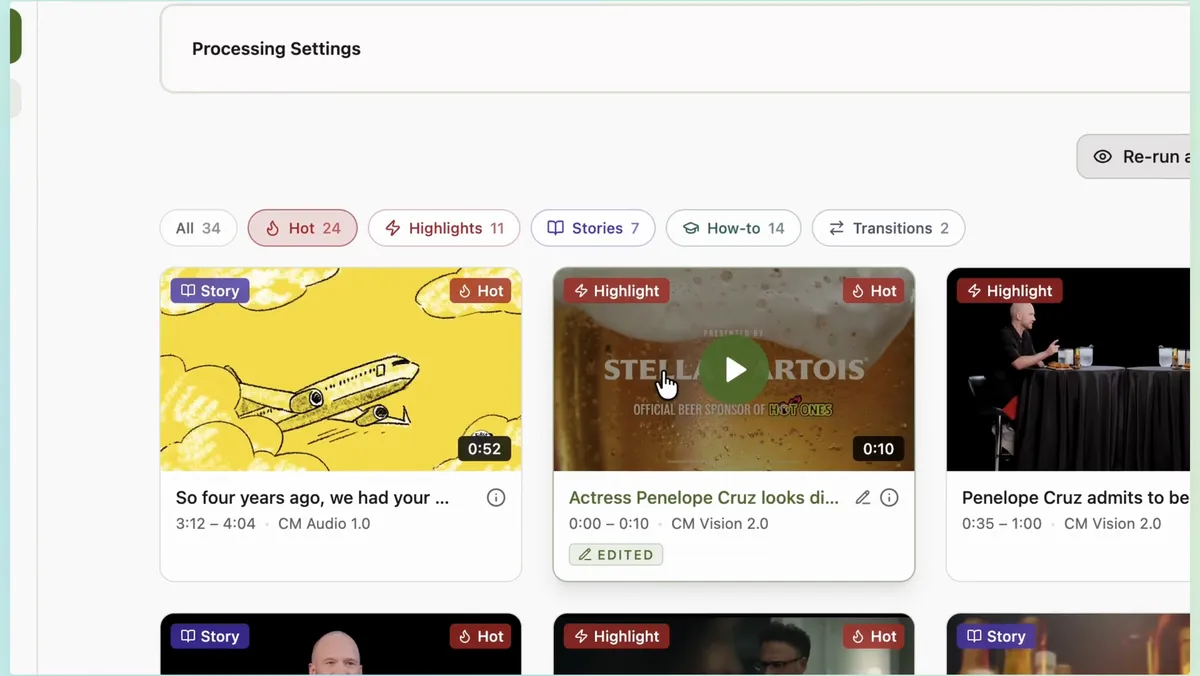
ClipMaster starts from the long video. Upload a file of up to an hour (or paste a YouTube link on a paid plan) and it goes through the whole thing — what is said, and on paid plans what happens on screen — then hands back clips that are already labelled: a virality tier (Hot, Warm or Neutral) and a type (Highlight, Story, How-to). You start from a ranked shortlist instead of a scrub bar.
Long Video to Shorts, Head to Head
Finding the moments
Both tools pick highlights for you. The difference is what you can do when the pick is not the moment you had in mind. In ClipMaster you can describe it — "the audience laughing at the punchline", "the product reveal" — and it searches the audio and the picture together for matching moments. In CapCut you go back to the timeline and look.
Captions
Both caption automatically. CapCut has a big style and template library. ClipMaster has 15 caption presets with karaoke word highlighting, lets you retime any single word to 0.05 seconds, drop an emoji on a word, and add a second line in another language under the original.
Vertical framing
For talking-head and two-person footage, ClipMaster analyses each shot and picks a vertical layout that fits it — one speaker in focus, two speakers stacked, screen plus webcam, gameplay plus face cam. In CapCut you reframe by hand or with its auto reframe.
Editing the clip
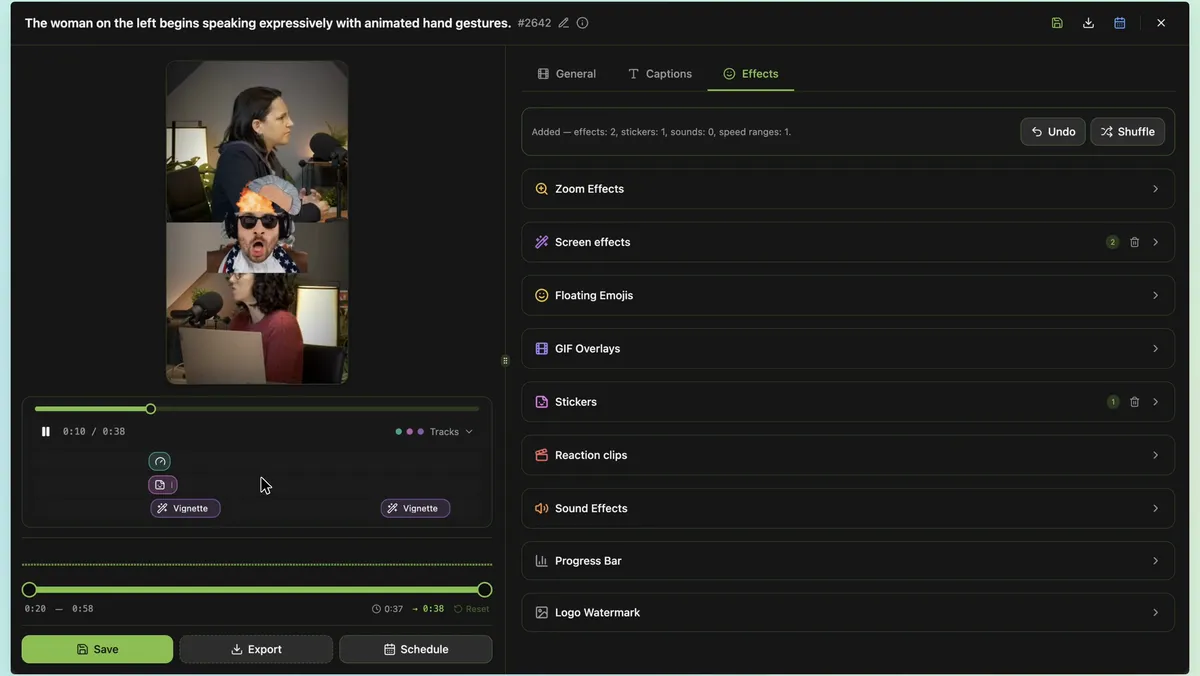
This is CapCut's home turf. For multi-track edits, keyframed motion, green screen or colour work, CapCut is simply the stronger editor. ClipMaster covers what short clips usually need: trim, zooms, screen effects like black & white, flash, shake and rage, speed changes, GIFs, stickers, reaction clips, emoji, sound effects, your logo and a progress bar. Its Auto-edit button plans all of that in one click — zooms on the punchlines, effects on the big moments, stickers and sounds spaced so nothing crowds — and you can undo it or shuffle for another take.
Where ClipMaster Goes Further
- Compilations across your library. Describe the vibe and ClipMaster pulls matching clips from all your videos, cuts them as a Best-of, Countdown, Trailer or Montage, and Auto-edit adds the transitions, an opening title, music and the effects. In CapCut a compilation is a manual timeline job.
- Scheduling to YouTube. Connect your channel once, pick a clip and a time; ClipMaster renders it, drafts the title, description and hashtags, and publishes on schedule from a calendar.
- Running it from Claude or ChatGPT. Paste one URL into your AI assistant and ask it to import a video, pick clips, edit and schedule them — or call the same REST API from your own code.
Price
CapCut wins for casual use: its free plan covers most editing, and its long-video-to-shorts tool is free without a watermark. Paid tiers (Standard and Pro, around $19.99 a month for Pro at the time of writing) unlock premium effects and 4K, and prices vary by region.
ClipMaster charges by the minute of video you process: 1 token = 1 minute. You get 10 free minutes with no card, with up to 5 watermarked exports a month. The Creator plan is $19 a month for 200 minutes and Pro is $49 for 600, both with unlimited exports and no watermark, and unused minutes roll over. If you clip a few long videos a week, that is the number to compare against the hours you would spend scrubbing — see pricing.
A Workflow That Uses Both
- Upload the long video to ClipMaster and let it find and rank the clips.
- Open the Hot ones, press Auto-edit, adjust, and export or schedule.
- For the one clip a week that deserves a heavy edit, export it and finish it on CapCut's timeline.
Most weeks you will not need step 3. That is the point: the finding and the routine editing are the hours, and they are the part worth automating. If you came here looking for a replacement rather than a partner, the CapCut alternative page covers what ClipMaster does feature by feature, and the features page shows each one in the app.