How to Add Auto Captions to YouTube Shorts (and Make Them Readable)
Does YouTube add captions to Shorts automatically? Yes — but probably not the kind you mean. There are two very different things called "captions" on a Short, and only one of them is guaranteed to be seen. This guide explains the difference, the three ways to add auto captions, and how to make them readable on a phone.
Two Kinds of Captions
- Closed captions (CC). YouTube's speech recognition transcribes your Short after you upload it. Viewers have to switch them on, and you can review and correct them in YouTube Studio. Good for accessibility and search, invisible to everyone who never taps CC.
- Burned-in captions. Text that is part of the video itself — the big, bold words you see on most Shorts. Everyone sees them, muted or not, and they move with the speech. This is what people usually mean by "captions on Shorts".
For Shorts, burned-in captions do the heavy lifting: a lot of viewing happens with the sound off, and a viewer decides in the first second or two whether to keep watching. We looked at what the data says in captions vs no captions.
Three Ways to Add Auto Captions to a Short
1. YouTube's automatic captions
Upload the Short and YouTube generates closed captions on its own for most languages. Open the video in YouTube Studio, go to Subtitles, and fix the errors — names, brands and slang are what it gets wrong most. Free, but they stay closed captions.
2. The captions tool in the Shorts editor
YouTube's mobile Shorts editor can now generate captions and burn them in, with a handful of text styles and colours. Fine for a quick post from your phone; limited if you want a consistent look across every clip, or precise control over each word.
3. Caption the clip before it reaches YouTube
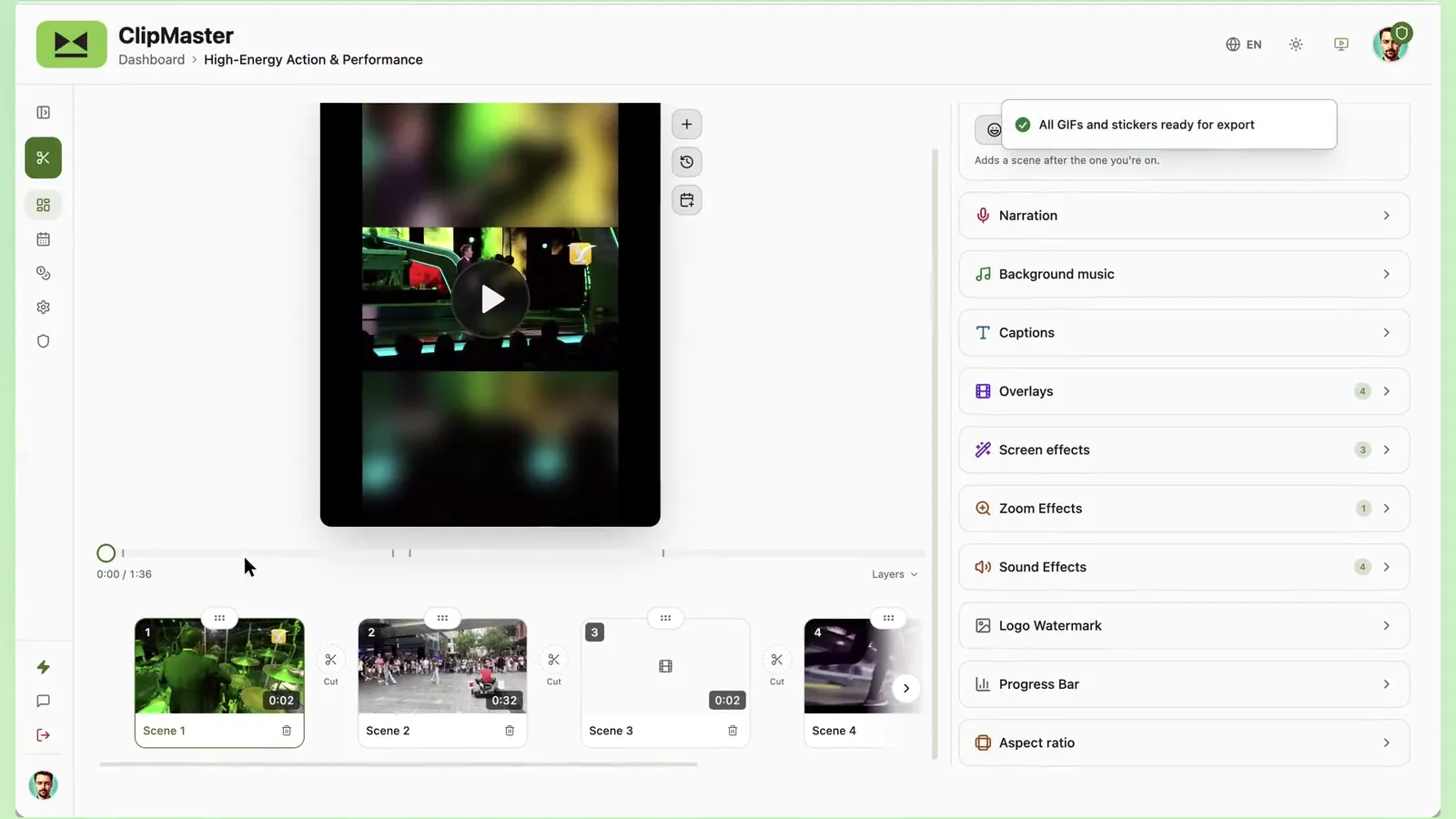
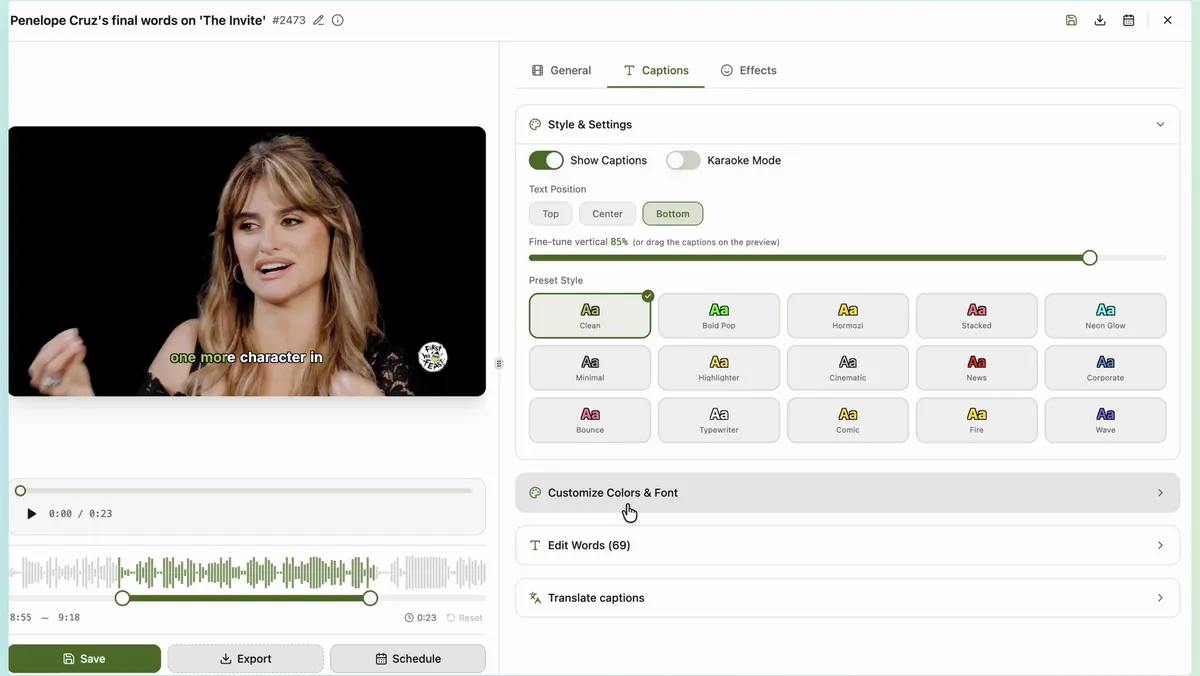
If your Shorts are cut from longer videos, caption them where you cut them. In ClipMaster every clip comes with its transcript, and captions are one switch:
- 15 presets — Bold Pop, Hormozi, Neon Glow, Cinematic and more — with karaoke highlighting that follows each word.
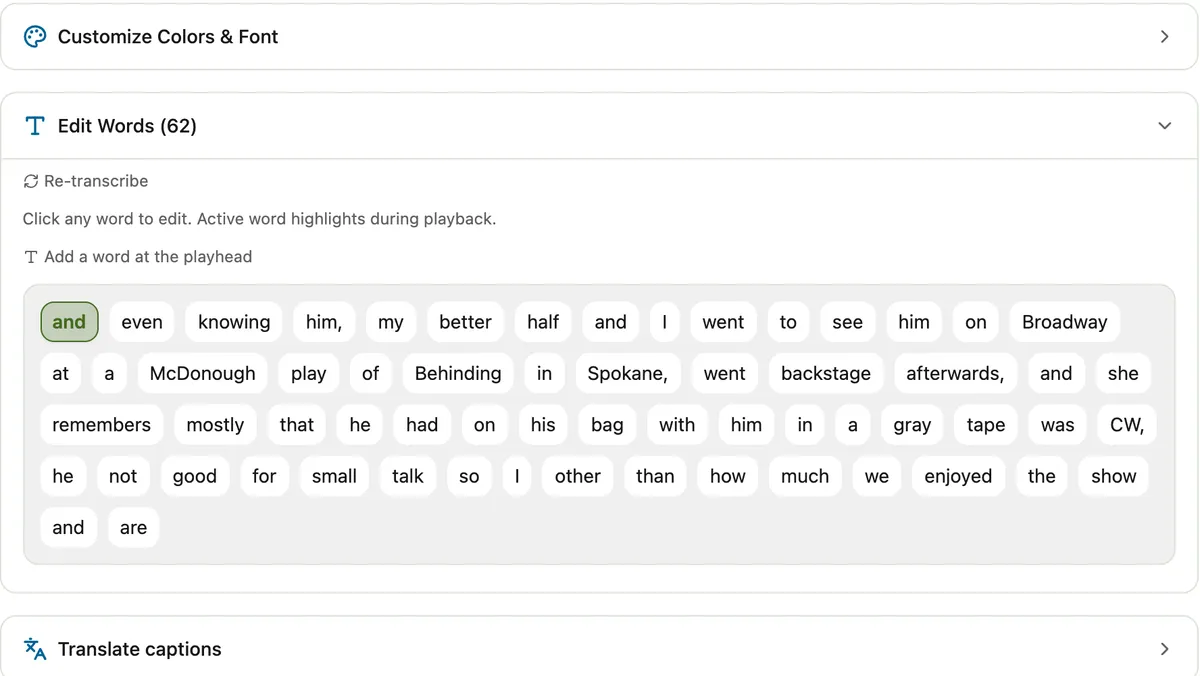
- Word-by-word editing. Fix a misheard word, retime it to 0.05 seconds, or drop an emoji on it.
- A second language line under the original, on paid plans, for reaching viewers who don't speak it.
- Drag to place. Move the captions where they don't fight the face or the platform's buttons.
Make Them Readable on a Phone
- Keep them in the safe zone. The bottom of a Short is covered by the title, channel name and buttons, and the right edge by the like and comment icons. Place captions just below the middle.
- Two to four words at a time. A full sentence on screen gets skimmed or skipped. Short chunks are read.
- Contrast over style. A bold sans-serif with a dark outline or box stays readable on any background; a thin script font on a busy shot does not.
- Highlight the word being said. Karaoke-style highlighting tells the eye where to look and keeps the pace of the speech.
- Fix the names. Speech recognition misses names, brands and jargon most often — and those are the words people notice when they are wrong.
The Quick Version
Let YouTube make the closed captions for accessibility and search, and burn in your own captions for the viewers who watch muted. If you are cutting Shorts from podcasts, streams or interviews, captioning at the clipping step saves a pass per clip — see caption styles and scheduling Shorts straight from your clips.