How to Schedule YouTube Shorts Straight From Your Clips
Here is an uncomfortable truth about short-form video: the clip you made is only half the work. The other half is actually posting it — on time, consistently, week after week. And that second half is where most creators quietly fail. The clips sit in a downloads folder, the posting schedule slips, and three weeks later the momentum is gone.
This article covers why a posting cadence beats chasing individual viral hits, how to build a schedule you can actually sustain, and how scheduling clips directly from your clipping tool removes the friction that kills most content plans.
Consistency Beats Virality (the Math Is Not Close)
Every creator wants the one clip that does a million views. But platform algorithms — YouTube Shorts especially — reward channels that publish reliably, because reliable channels keep viewers coming back. A channel posting three solid Shorts a week for six months has published roughly 78 videos. Each one is a lottery ticket, a data point, and a chance to be recommended.
The creator waiting to perfect one "big" clip has published one. Even if that single clip outperforms any individual video from the consistent channel, the consistent channel wins on subscribers, watch time, and — most importantly — on knowing what works, because 78 data points teach you things one data point never can.
- Algorithms favor recency and frequency. A steady stream of uploads gives the recommendation system more chances to test your content against new audiences.
- Audiences build habits around cadence. Viewers who see you in their feed every few days start recognizing you. Recognition turns into follows.
- Volume de-risks experimentation. When you post three times a week, one experimental clip that flops costs you nothing. When you post once a month, every upload feels high-stakes — so you play it safe and learn nothing.
Why Posting Schedules Fail
If consistency is so clearly the winning strategy, why does almost nobody sustain it? Because the traditional workflow has too many manual steps between "clip is ready" and "clip is live":
- Export the clip from your editing tool
- Download it to your device
- Open the platform's upload flow
- Write a title, description, and hashtags from scratch
- Pick a publish time — or more often, just hit post whenever
- Repeat for every clip, every time
Each step is small. Together they add up to 10–15 minutes per clip of pure administrative overhead, and it is exactly the kind of shallow, repetitive work that gets postponed. The clips are done; the posting is not. That gap between production and publication is where content plans go to die.
The Fix: Schedule at the Moment of Creation
The most effective change you can make to your workflow is to close that gap entirely: the moment a clip is worth posting, schedule it — from the same tool where you made it. Batching works with your psychology instead of against it. You are already in "review mode" going through your clips; deciding when each one goes live is a ten-second decision while the clip is in front of you.
A practical weekly rhythm looks like this:
- One recording session — a podcast episode, a stream, a tutorial. One long video is enough raw material for a week of Shorts.
- One clipping session — let AI surface the candidate moments, review them, keep the strong ones.
- One scheduling pass — assign each keeper a slot across the week and let the queue publish for you.
Total hands-on time: a couple of hours. Output: a channel that looks alive every single day.

How Clip Scheduling Works in ClipMaster
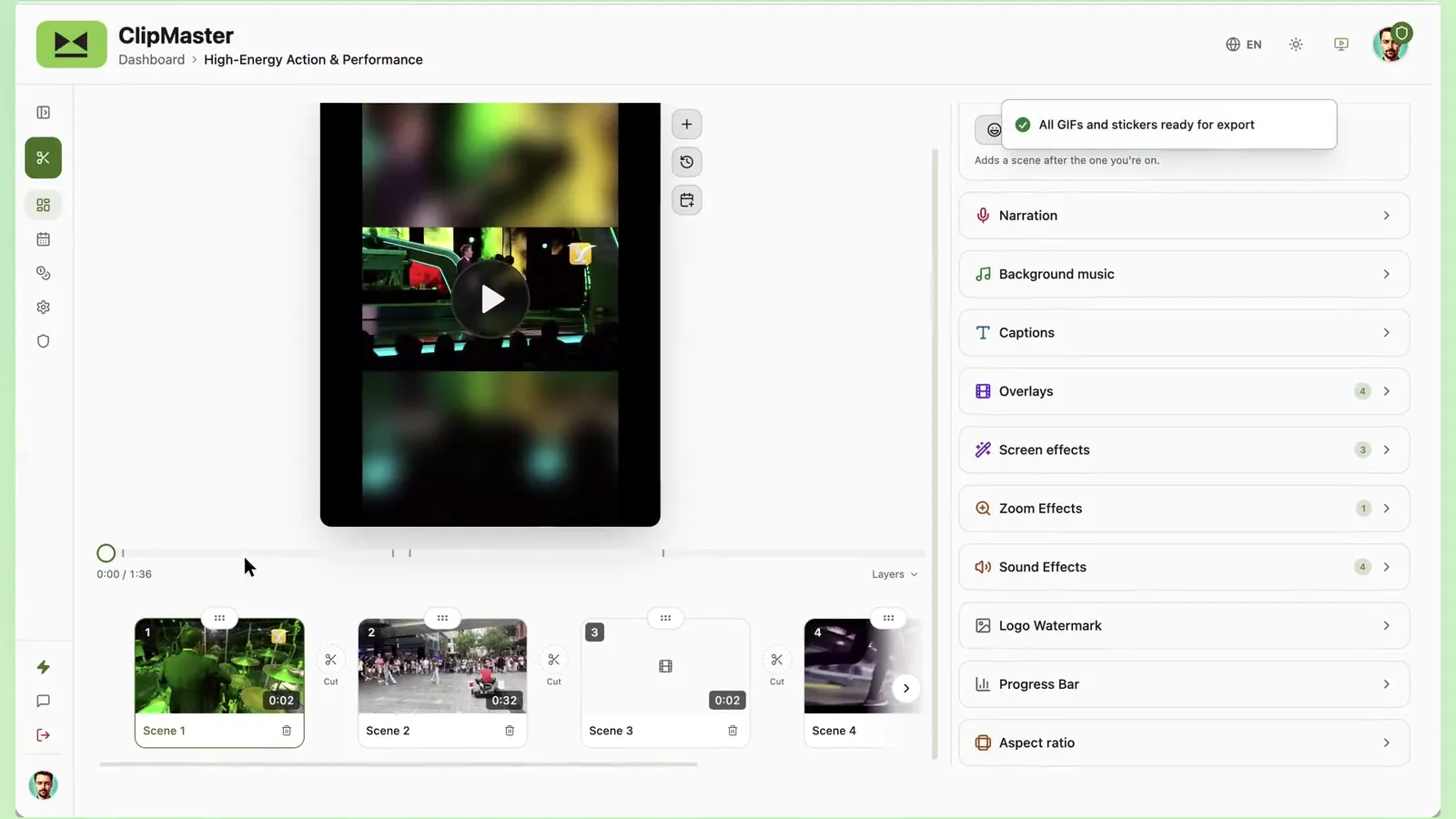
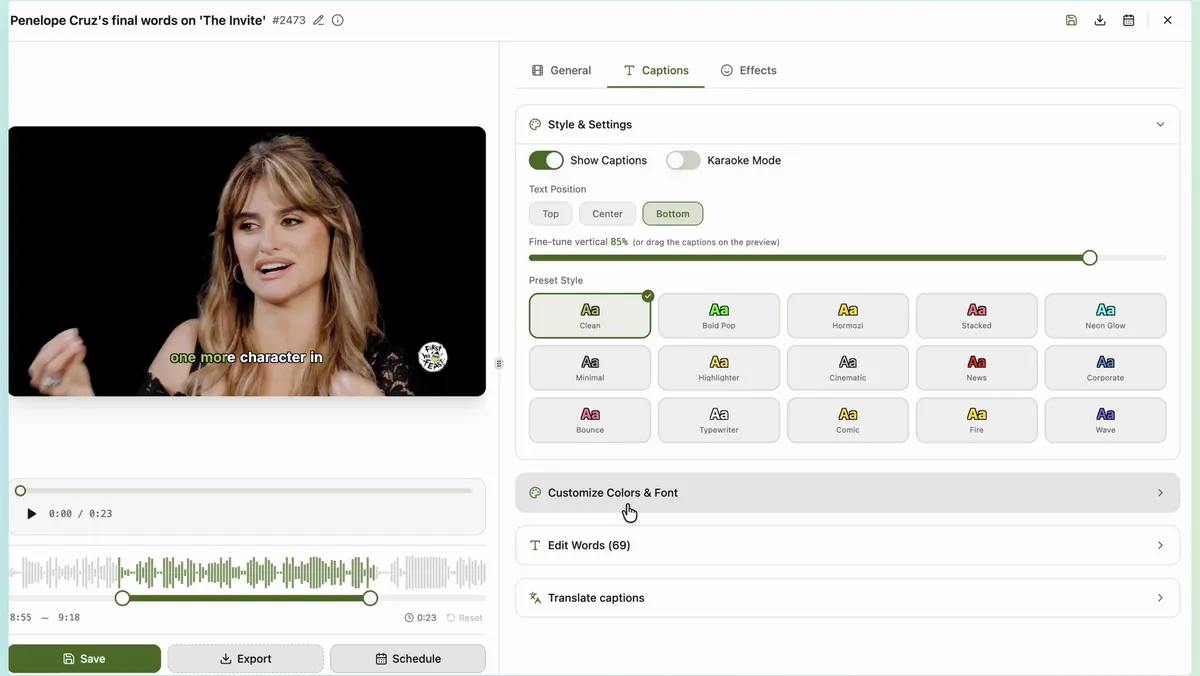
ClipMaster now publishes directly to YouTube. Connect your channel once in Settings, and every clip in your library gets a Schedule action — from the clip card or right inside the editor.
Connect Your Channel
Authorize your YouTube account under Settings → Connected accounts. You can connect multiple channels and pick the destination per post — useful if you run separate channels for different content lines or manage clients.
Pick a Clip, Pick a Time
Choose the clip, the channel, and the publish time. If the clip has not been rendered yet, ClipMaster renders it automatically before the scheduled slot — you do not need to export anything manually. Your captions, smart crop, and effects are baked in exactly as you configured them in the editor.
Let AI Draft the Metadata
Titles and descriptions are where scheduling sessions stall. ClipMaster drafts them for you: one click generates a title, description, and hashtags from the clip's actual transcript — not generic templates — and you edit them like any text field before saving.
Manage Everything on the Calendar
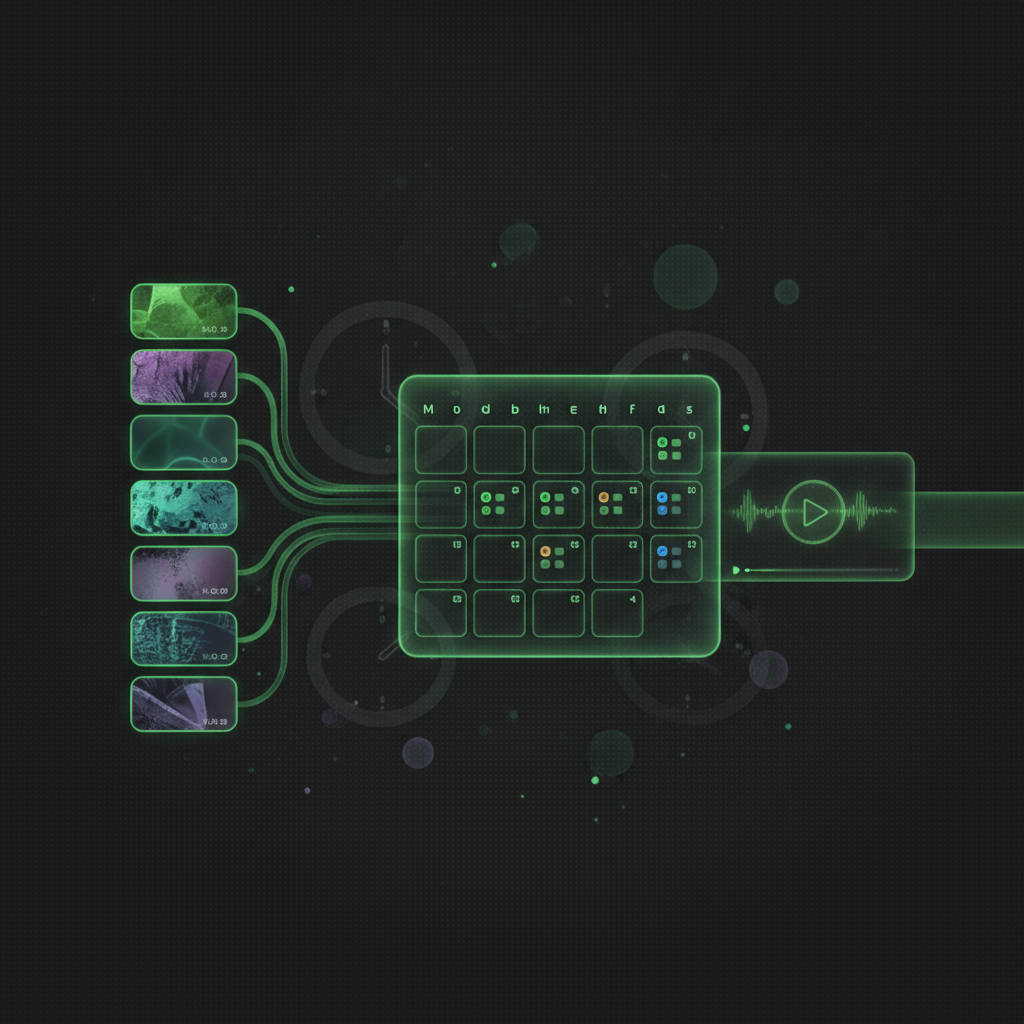
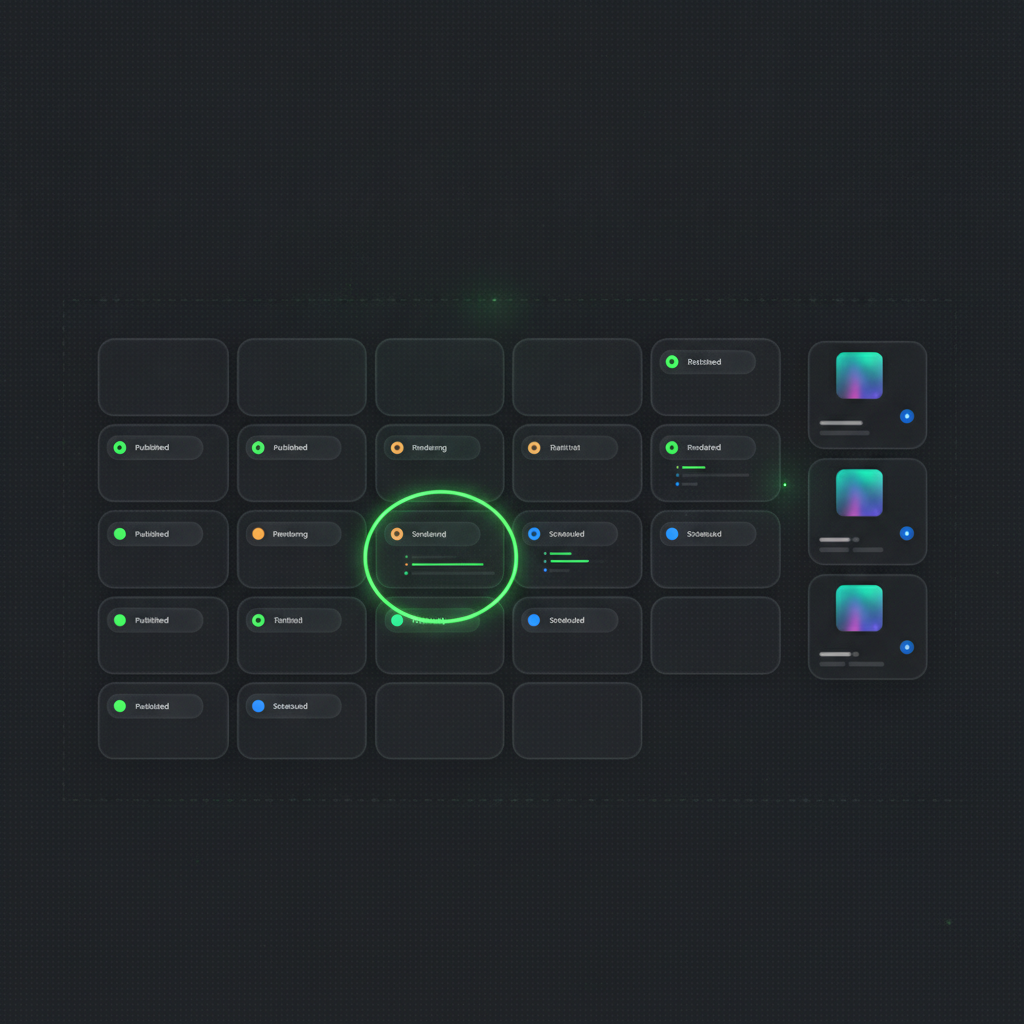
The Schedule page shows your full posting pipeline on a monthly calendar: what is queued, what is rendering, what has published, and what failed (with the reason). Drag a post to a different day, cancel a pending one, or jump from any published entry straight to the video on YouTube.
Scheduling Strategy: When and How Often
Two honest rules about timing, backed by what platform data consistently shows:
- Consistency matters more than the "perfect hour."Posting reliably at a decent time beats posting sporadically at the theoretically optimal time. Pick slots you can sustain.
- Match your audience's day, not yours. If your viewers are in a different timezone, schedule for their commute and evening windows. This is exactly what a scheduling queue is for — you work when you work; the posts go out when your audience is watching.
Start with three slots a week — say Monday, Wednesday, Friday at your audience's early evening. Hold that cadence for a month before deciding anything about "what works." Then look at your retention data, adjust one variable, and hold again. Boring, methodical, and it works.
The channels that grow are not the ones with the best single clip. They are the ones where publishing became a system instead of a decision. Remove the decision, and the content ships itself.
From Raw Footage to a Full Queue in One Sitting
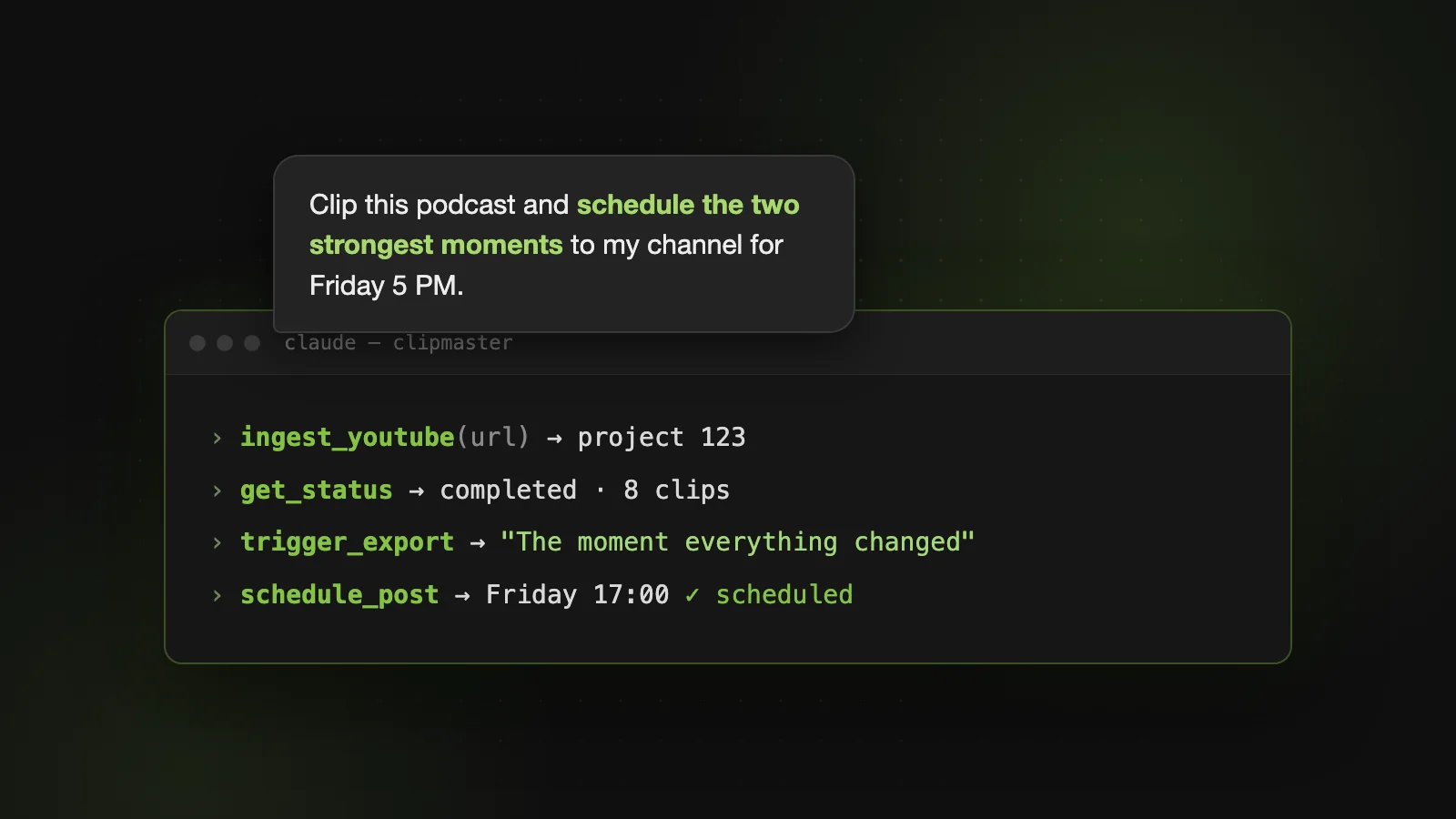
The full ClipMaster loop: upload a long video, let the AI detect the strongest moments, polish your favorites with captions and reframing, then schedule the week's posts before you close the tab. No downloads, no upload forms, no "I'll post it tomorrow."
Your clips are already good. Now make sure they actually ship — upload a video and schedule your first week of Shorts today.