How to Make a Compilation Video (From Many Videos, in Minutes)
A compilation video takes the best moments from many videos and cuts them into one: a "best of the year", a top-10 countdown, a trailer for your channel, every time the crowd went wild. They are some of the most re-watched videos on YouTube, TikTok and Reels, because each one is all highlights and no filler.
They are also tedious to make by hand. This guide covers what makes a compilation work, how to make one in any editor, and how to get the same result in a few minutes when the clips are spread across a whole library of videos.
Pick the Format First
"A compilation" is not one format. Decide which one you are making before you collect a single clip — it decides the order, the length and the text on screen.
- Best-of. Your strongest moments, ordered to build: open with a hook, save the biggest moment for last.
- Countdown. A numbered list ("#5 … #1") — each scene carries its rank on screen, and the order is the payoff.
- Trailer. Short, fast cuts that tease a longer video or a channel, ending on a title card that says where to watch.
- Montage. Clips held together by a mood or a theme rather than a ranking, usually cut to music.
- Loop, tutorial or Q&A. For Shorts: an ending that flows back into the start, steps in order, or questions and answers from many interviews.
How to Make a Compilation Video in Any Editor
The manual route works in CapCut, Premiere, DaVinci Resolve or the YouTube and TikTok editors. It is the same six steps everywhere:
- Collect the moments. Go through each source video and note the timestamps worth using. This is the slow part — for an hour of footage, expect to watch most of it.
- Cut each one tight. Start on the action, not the lead up. Most compilation scenes are 3 to 15 seconds.
- Order them. Follow the format: build to the best moment, or count down to #1.
- Join them. Use hard cuts for energy and short fades where the mood or the source changes. Keep transitions under half a second.
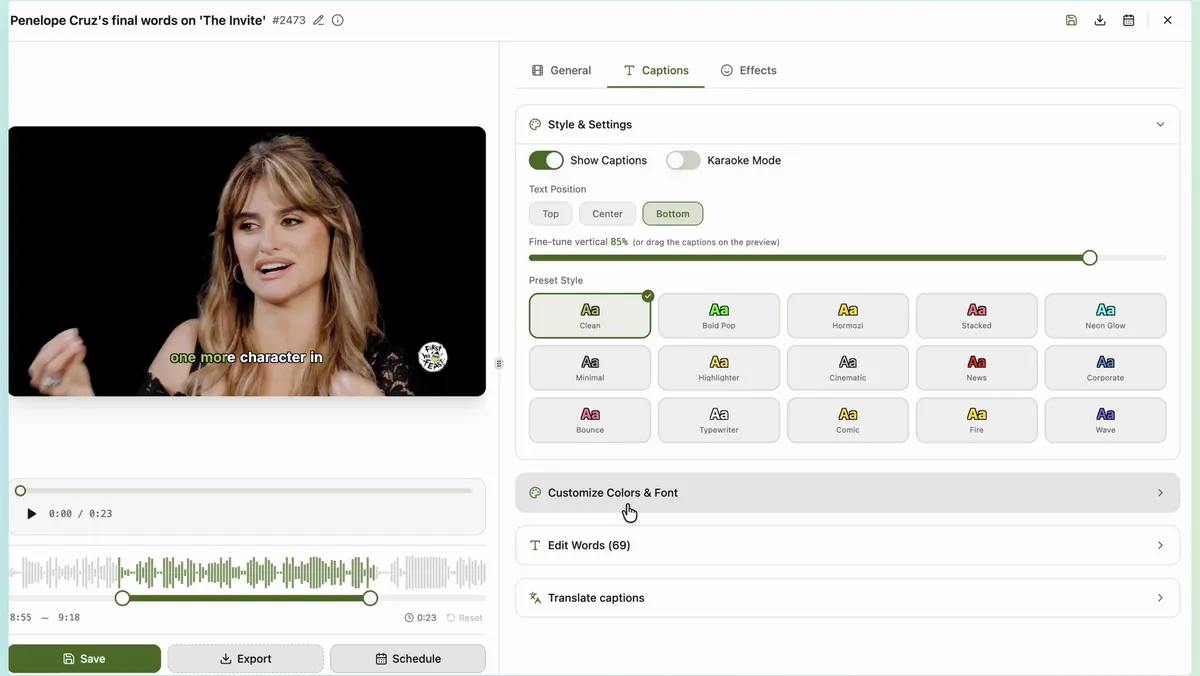
- Dress it. An opening title, captions (most people watch muted), and one music track under the whole thing, ducked under speech.
- Export for the platform. 9:16 vertical for Shorts, TikTok and Reels (YouTube Shorts can be up to 3 minutes); 16:9 for a regular YouTube video.
On YouTube, TikTok or Instagram the in-app editors can stitch clips you already have on your phone. On CapCut you do it on the timeline. Either way, step 1 is the one that eats the afternoon.
Use Footage You Have the Rights To
Compilations of other people's videos are the fastest way to a copyright claim. Build them from your own videos, your guests' appearances on your show, or footage you have licensed. Reaction GIFs and stickers from a licensed library are fine; whole clips lifted from someone else's channel are not.
The Fast Way: Let the Clips Find Themselves
If your videos are already in ClipMaster, the slow part is done: every video has been gone through and every clip is labelled. A compilation becomes three clicks:
- Describe it. Type the vibe — "high energy moments, crowd reactions", "every time a guest talks about money" — and ClipMaster reads your whole library and suggests sets of clips that fit, across all your videos.
- Arrange it with AI. Pick a format — Best-of, Countdown, Trailer, Montage, Loop, Tutorial or Q&A, or Auto — and the AI orders and trims the scenes for it.
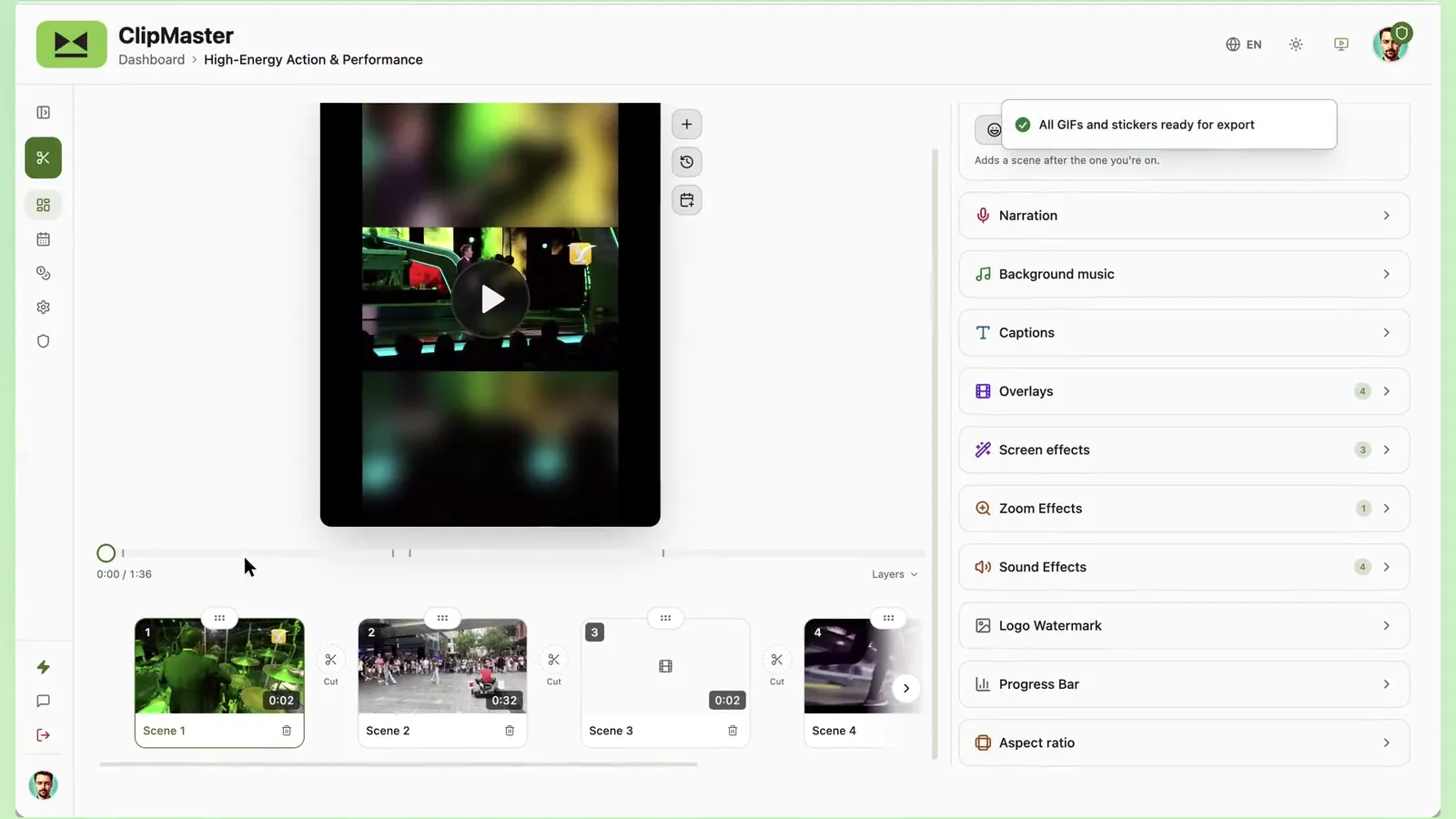
- Auto-edit it. One click adds fades between scenes, an opening title, a background track, plus zooms, screen effects, stickers, emojis, sound effects and up to two reaction clips. Every effect shows on the timeline, where you can move it, and Undo takes the whole pass back.
Then export it vertical, horizontal or square, or schedule it straight to YouTube. Compilations are on the paid plans; the features page shows the builder, and if you are comparing editors for this, ClipMaster vs CapCut covers where each one fits.
Quick Checklist Before You Post
- The first two seconds are the strongest moment you have.
- No scene runs longer than it needs to; cut the wind-up.
- Captions are on and readable on a phone.
- The music sits under the voices, not on top of them.
- The end either loops back or tells people where the full video is.