How ClipMaster Works: From Long Video to Scheduled Shorts
ClipMaster is an AI video tool that finds the moments worth posting in long footage, finishes them into short clips, and schedules them to YouTube. What makes it different: it finds moments from the picture, not just the transcript. So it works on a podcast, and it also works on a wedding, a concert, a skate session or a cooking video where nobody talks to the camera.
This guide walks through the whole thing, step by step, in the order you would use it: Find, Finish, Assemble, Ship, Automate.
The Short Version
| Stage | What you do | What ClipMaster does |
|---|---|---|
| Find | Upload a video or paste a YouTube link | Watches the picture, listens to the audio, reads the transcript, and returns ranked clips |
| Finish | Open a clip, press Auto-edit or edit by hand | Captions, vertical framing, zooms, effects, stickers, sound effects |
| Assemble | Describe a theme | Builds one video from clips across all your projects: Best-of, Countdown, Trailer, Montage |
| Ship | Pick a date and time | Renders the clip, writes the title and hashtags, posts it to YouTube |
| Automate | Ask Claude or ChatGPT, or call the API | Runs every step above without opening the app |
1. Find: Upload Once, Get Ranked Clips Back
Upload an MP4, MOV or AVI up to 90 minutes and 5 GB, on every plan, including free. You can drop several files at once and each one gets its own settings; five process at the same time. On a paid plan you can also paste a YouTube link instead of uploading.
Then ClipMaster goes through the video three ways at once:
- The picture: what happens on screen, frame by frame. A trick lands, the crowd jumps, the bride walks in, the pan catches fire.
- The audio: laughter, applause, music, loud hits, quiet stretches.
- The transcript: what is said, word by word.
Many clipping tools pick moments from the transcript, so they need someone talking. Reading the picture is why ClipMaster works on footage with no dialogue at all, and it does that on paid plans; the free plan finds clips in what is said. Processing usually takes 5 to 10 minutes, depending on length, and you can watch the progress live.
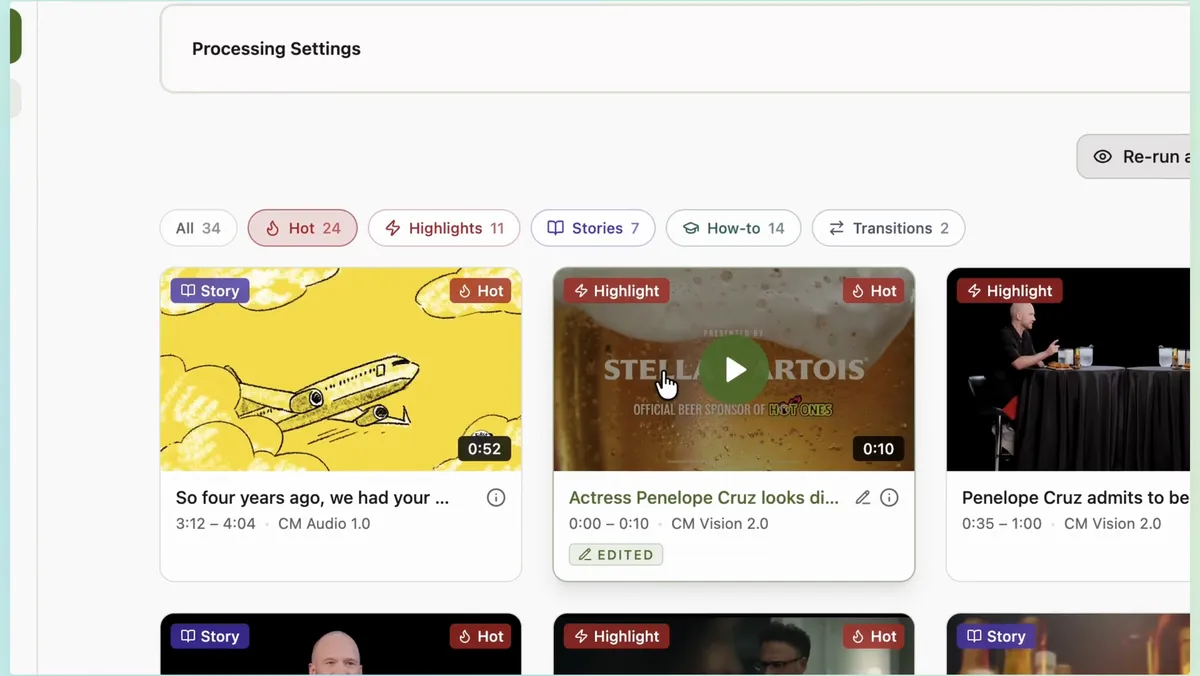
Every clip comes back labelled
Before you render anything, each clip already has:
- A virality tier: Hot, Warm or Neutral, based on how strong the hook is and how intense the moment is.
- A clip type: Highlight, Story, How-to or Transition.
- A suggested hook line, a topic tag, a description and a confidence score.
Filter the grid by type (each filter shows its count) and start with the Hot ones. You go from a scrub bar to a shortlist. If you want help choosing, this guide on picking which AI clips to post covers it.
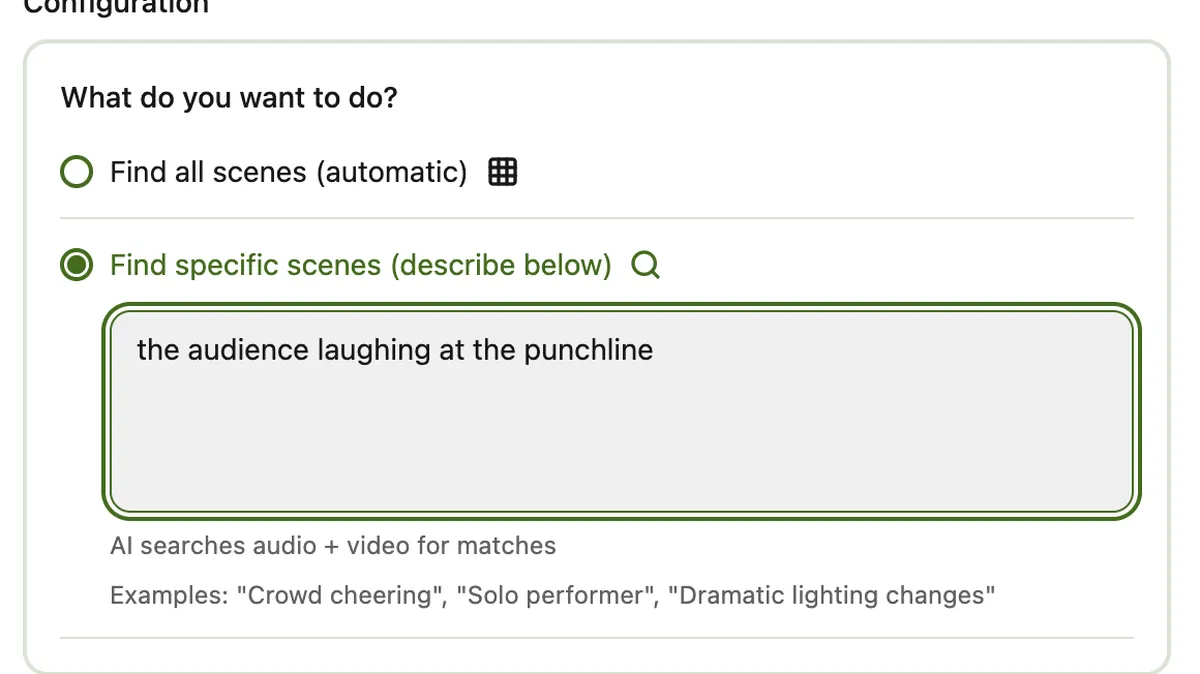
Missed a moment? Describe it
Type what you are looking for in plain words: "first kiss", "crowd cheering", "the product reveal", "when he falls off the board". ClipMaster searches the picture and the audio together and jumps to the matching moments, each with a confidence score. That is semantic video search: it matches meaning, not exact words.
2. Finish: Edit a Clip in One Click (or by Hand)
Open any clip and you get a full editor built for short-form. On a paid plan, Auto-edit plans the whole edit in one click: zooms, screen effects, stickers, sound effects and speed changes, spaced so they don't crowd each other. Tell it what you want ("hype energy, big bold text") and it follows. Undo takes it back; Shuffle gives you another take.
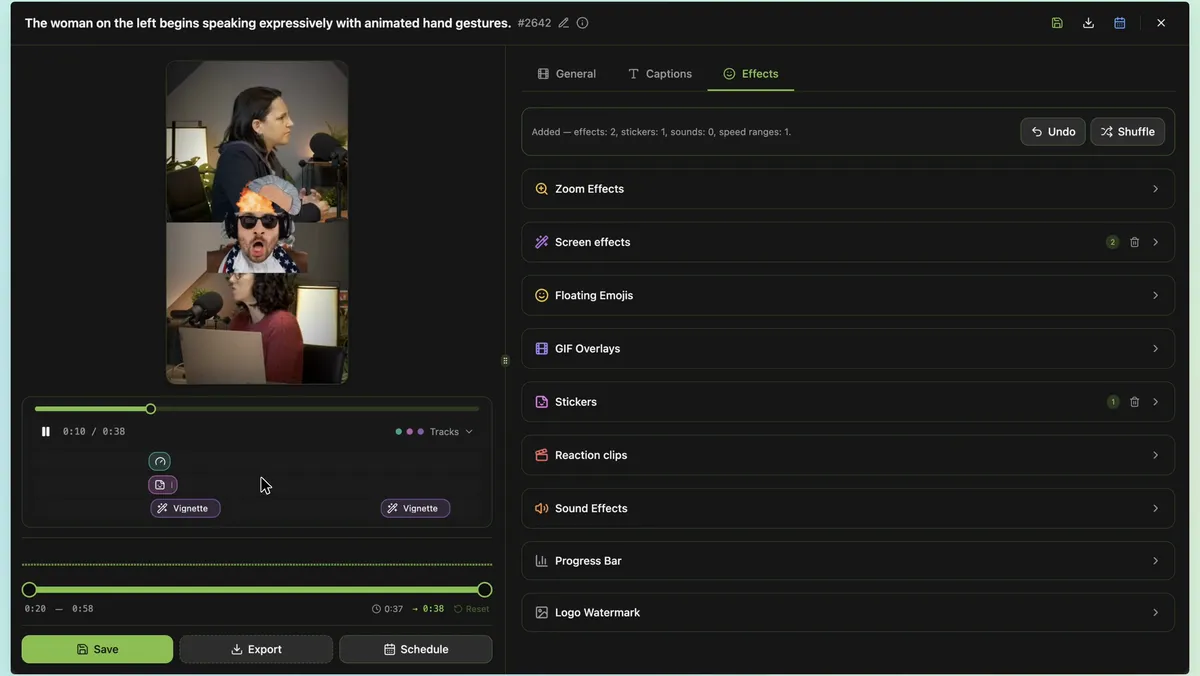
Everything Auto-edit does, you can also do yourself:
- Trim and rename: move the start and end to 0.1 seconds with a two-handle slider, and give the clip a real name instead of a scene number.
- Captions: 15 styles (Hormozi, Bold Pop, Neon Glow, Minimal, News and more), karaoke word fill, 8 animations. Click any word to fix it or retime it to 0.05 seconds. Paid plans add a second caption line translated into one of 21 languages.
- Vertical framing (paid): press Analyze layout and each shot gets the layout that fits: Focus on one person, Split or Grid for a conversation, Spotlight for a video call, Screen + cam for tutorials, Game + cam for streams, or Fit to show the whole frame over a blurred copy. More in AI smart crop.
- Zoom: snap in or glide in over up to 10 seconds, 1.05× to 2.5×, aimed at any of 9 points.
- Screen effects: black & white, rage, flash, strobe, shake, glitch, VHS grain, cinema bars, color pop, and impact, which pulses on every loud hit.
- Speed: the whole clip at 0.25× to 4×, or only parts of it: dead air sped up, the big moment in slow motion. On paid plans, AI suggests where.
- Overlays: up to 5 GIFs, 5 transparent stickers that can follow the speaker's face, and 5 reaction clips (movie, TV and meme lines with their sound) per clip.
- Sound effects: 22 sounds in Reactions, Impacts and Alerts, up to 10 per clip. On paid plans, Suggest reads the clip and places them with a reason.
- Branding: your logo in one of 6 positions, a progress bar, floating emoji.
Export 9:16 for TikTok, Reels and Shorts, 16:9 for YouTube, 1:1 for feeds, or the original aspect, at 1080p. Paid plans export without a watermark. Start an export and keep editing: the queue renders them one after another, and every file stays in your export history for a one-click re-download.
3. Assemble: One Video From Your Whole Library
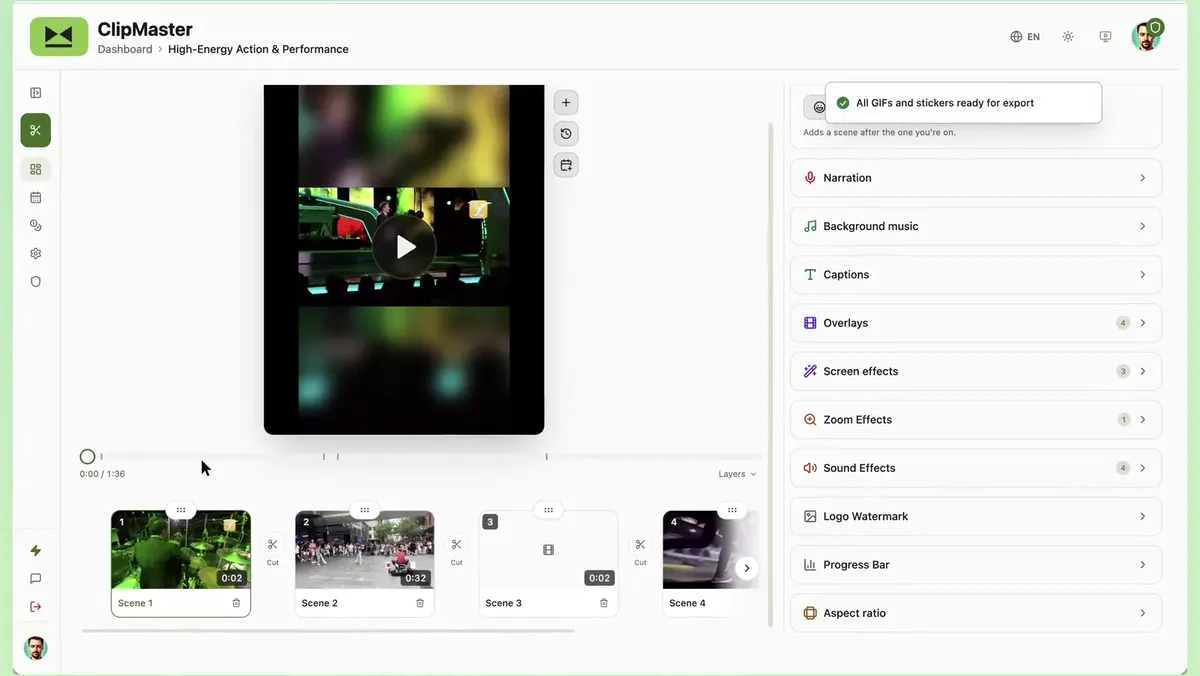
A compilation (paid plans) pulls clips from every project you have, not just one video. Describe a theme, such as "best tricks of the summer, fast" or "every crowd singalong", and the AI proposes a line-up with its reasoning and the total length.
Let the AI cut it as a Best-of, a Countdown, a Trailer or a Montage from your own brief, or use the fixed Loop (ends on the frame it started, so it replays), Tutorial (result first, then numbered steps) and Q&A structures. Then Auto-edit dresses the whole thing: transitions, text cards, a background track, a progress bar, slow motion on the big moment, and up to 2 reaction memes.
- Drag scenes into order, trim them, split or duplicate them, and give each its own layout.
- Put two clips side by side, or a clip next to an image as proof.
- Add a beat pattern to a scene: a stutter, build-up or jump cut that hits the music's beat.
- Add your own voiceover.
- Each clip's own edits (zooms, stickers, sounds, layout) carry into the compilation.
The step-by-step version is in how to make a compilation video.
4. Ship: Schedule It to YouTube
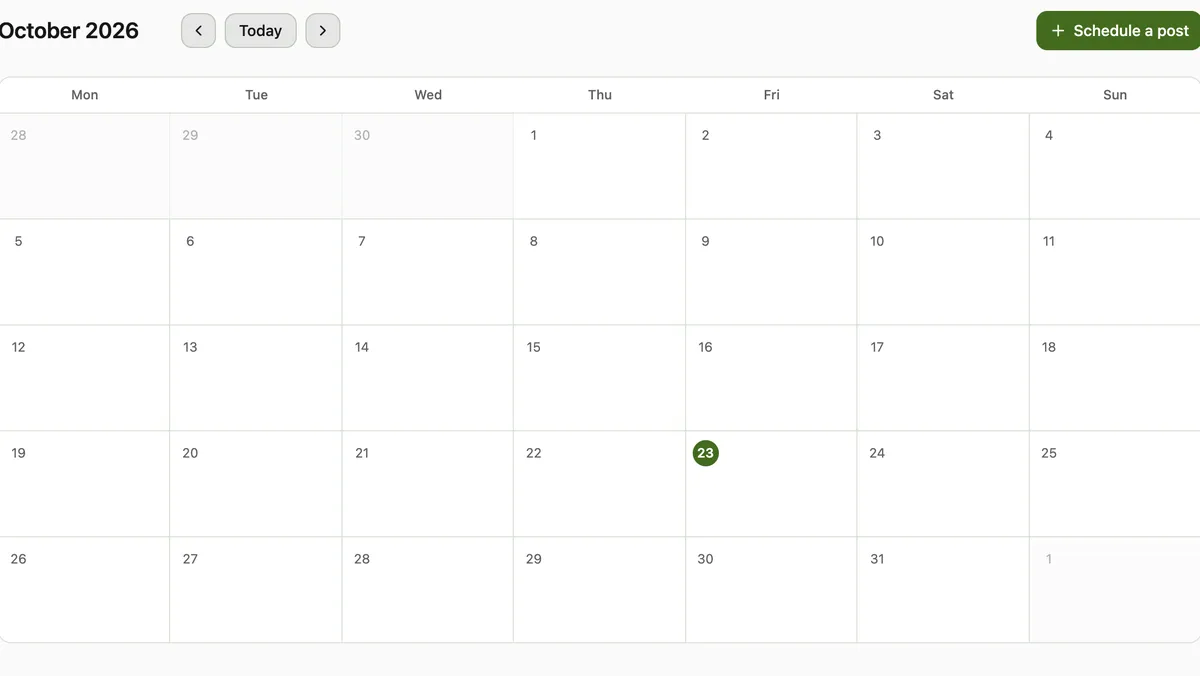
Connect one or more YouTube channels (paid plans), pick a clip, choose a date and time. ClipMaster renders it before the slot, the AI drafts the title, description and hashtags from what is said in the clip, and it publishes on time. A month calendar shows everything queued, rendering, published or failed. Walkthrough: schedule YouTube Shorts from your clips.
For TikTok and Instagram, export the 9:16 file and post it there.
5. Automate: Let Claude or ChatGPT Run It
Everything above also works without opening the app. On paid plans:
- MCP connector: paste
https://api.clipmaster.app/mcpinto Claude, ChatGPT or any app that supports remote MCP servers, sign in, and ask in plain words: "import this video, find the 5 funniest moments, caption them in Bold Pop and schedule one a day". Setup takes a minute: MCP guide. - REST API: upload, list clips, edit, export, build compilations and schedule from your own code, billed by the same tokens as the app. Reference: API docs.
Ready-made prompts are in the MCP recipes. There is also a ClipMaster skill for Claude that teaches it the workflows and the rules that protect your minutes. The full story is in automate your clip workflow.
What It Costs
1 token = 1 minute of video processed.
| Plan | Price | Minutes |
|---|---|---|
| Free | $0, no card | 5 minutes once, 5 watermarked exports a month |
| Creator | $19 a month ($180 a year) | 200 a month |
| Pro | $49 a month ($470 a year) | 600 a month |
Unused minutes roll over and never expire, and subscribers can buy one-time top-up packs in a busy month without changing plan. Paid plans add Auto-edit and AI suggestions, vertical layouts, compilations, caption translation, YouTube import and scheduling, the API and MCP, and unlimited exports without a watermark. Current prices are on the pricing page. New accounts also get demo projects that are already processed, so you can open the editor before uploading anything.
Who It's For
Anyone sitting on hours of footage who wants short clips out of it: podcasters and interviewers, and especially people whose best moments are visual. There are step-by-step guides for wedding videos, concerts, skate and action footage, cooking videos, workout videos and gaming streams.
FAQ
How does ClipMaster find the best moments in a video?
It analyses the picture, the audio and the transcript together, then labels every clip with a virality tier (Hot, Warm, Neutral), a type, a hook line and a confidence score. You can also describe a moment in plain words and it searches for it.
Does ClipMaster work on videos where nobody is talking?
Yes, on paid plans. Because it reads the picture and not only the transcript, it finds moments in weddings, concerts, sports, cooking, workouts, gameplay and silent screen recordings. The free plan finds clips in what is said.
Is ClipMaster free?
There is a free plan: 5 minutes of video once, with no card, and up to 5 watermarked exports a month. Paid plans start at $19 a month.
How long can my video be?
Up to 90 minutes and 5 GB per file, on every plan.
Does ClipMaster delete my videos?
No. Your videos and clips stay in your library until you delete them, and they are never sold or used to train AI.
Can ClipMaster post to TikTok and Instagram?
It schedules straight to YouTube. For TikTok and Instagram, export the vertical clip and upload it there.
Can I use ClipMaster from ChatGPT or Claude?
Yes, on paid plans. Add the ClipMaster MCP connector and ask in plain words; it can import, clip, caption, edit, compile, export and schedule.
How is ClipMaster different from OpusClip or CapCut?
OpusClip clips from what is said on its Free and Starter plans and adds visual clipping on Pro, from $29 a month; ClipMaster reads the picture on paid plans, from $19 a month. Submagic says its clip finder reads the transcript. CapCut is a timeline editor for when you already know the moment; ClipMaster finds the moment first. Side-by-side comparisons: vs OpusClip, vs CapCut, vs Submagic, vs Vizard, vs Descript and vs DaVinci Resolve.